
Building a Daily GitHub Trending Repository Email Alert with Browser-Use
Learn how to automate daily GitHub Trending repository email alerts using Browser-Use for reliable web automation.
In this tutorial, we will walk through how to build a daily email alert system that sends you the top trending repositories on GitHub using Browser-Use for web automation, without writing any code.
Prerequisites
Before we start, make sure you have the following:
- VibeFlow account
- Browser-Use API key
- Resend account for sending emails
So let’s get started!
Creating a workflow in VibeFlow is straightforward and easy. Just follow the steps below:
- Log in to your VibeFlow account and type the following prompt in the prompt box to create a new workflow:
Create an application that tracks daily trending TypeScript repositories from https://github.com/trending/typescript?since=daily. I need a cron job that fetches the trending projects and their urls using browser use, then sends me a daily email. I also want a UI where I can configure the email settings and choose where the email is sent from.
Vibe Agent will generate a flow something like this:
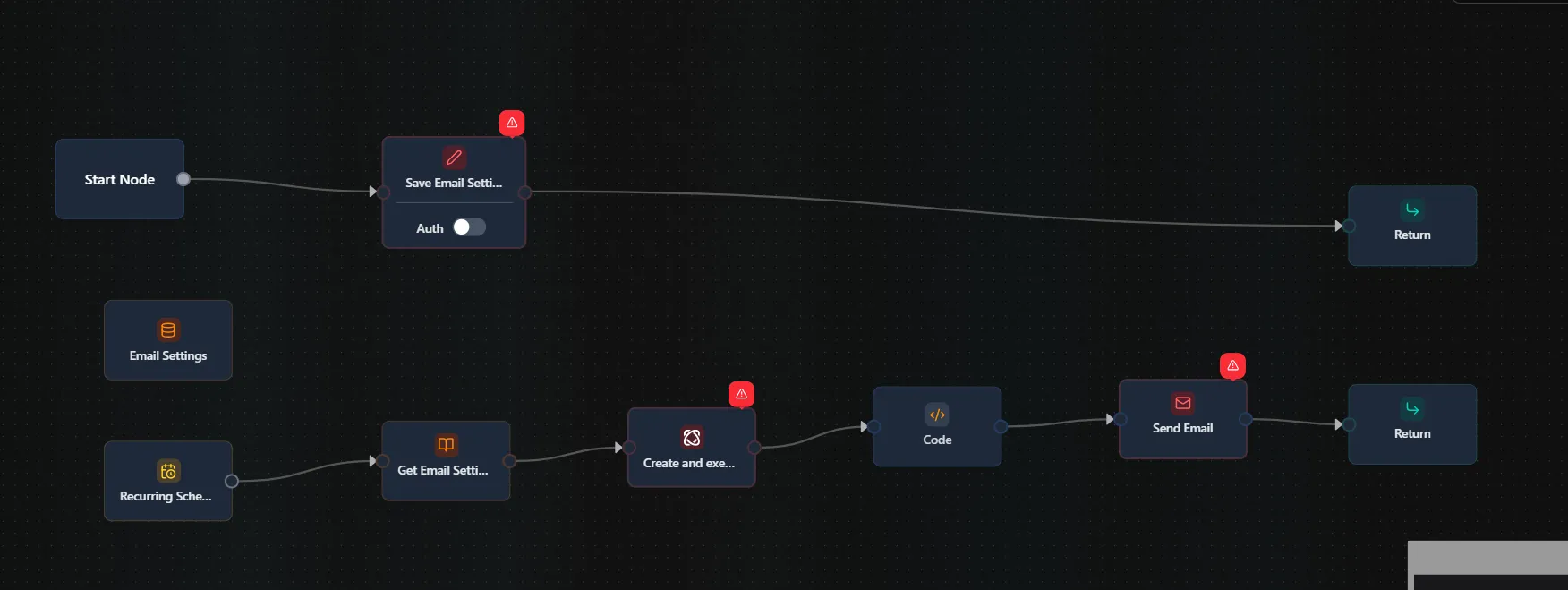
So what are the nodes in the flow doing?
As you can see there are 10 nodes in total. Let’s go through them one by one.
-
Collection Node: This is the Convex schema we use to save the email configuration
-
Start Node: This is the entry point for the frontend application
-
Mutation Node: This node is used to create a new email configuration
-
Return Node: This node returns final response to the frontend
-
Cron Node: This node is used to schedule the daily job at 9 AM UTC
-
Query Node: This node fetches the email configuration from the database
-
Browser-Use Task Node: This node is used to scrape the GitHub trending page. This node makes a POST request to the Browser-Use API
-
Code Node: This node processes the data returned from the Browser-Use node and formats it into an HTML email body
-
Resend Email Node: This node is used to send emails using the Resend email service
-
Return Node: This node returns the final response
We need to configure some of the nodes to make the flow work.
Configure Browser-Use Task Node
Double click on the Browser-Use task node to open the configuration panel.
Then you can select the API Key you configured in VibeFlow connector page.
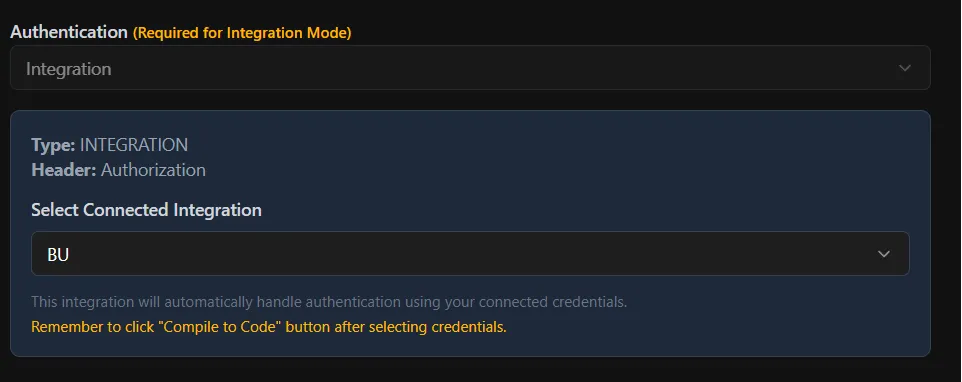
Vibe Agent already configured the rest of the required fields for you. Since in our automation we need structured data, which is easily set by passing a JSON schema in the jsonSchema field in the Browser-Use API, Vibe Agent already added everything for us.
In order to add Browser-Use API Key, you need to do the following steps:
- Click on the Avatar icon on the top right corner of the VibeFlow dashboard.
- Select ‘Settings’ from the dropdown menu.
- Left side menu, click on ‘Connectors’.
- Click ‘Add Connection’ button, which will open a modal like below:
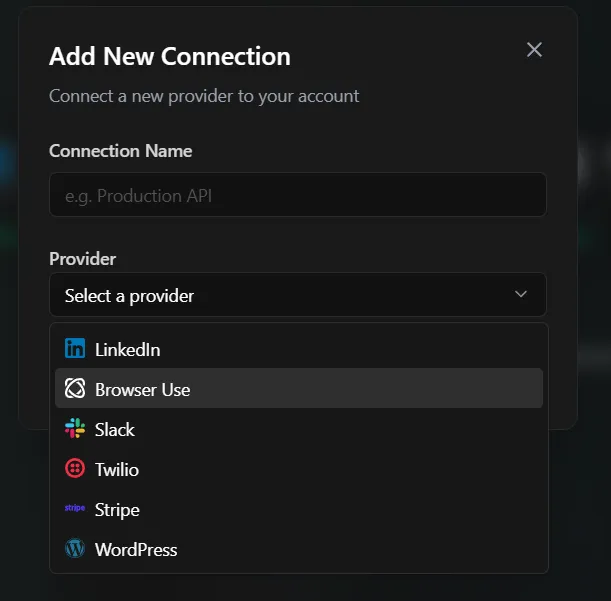
- Now select ‘Browser-Use’ from the provider dropdown.
- Enter a name for the connection (e.g., “My Browser-Use Key”).
- Paste your Browser-Use API key in the ‘API Key’ field.
- Click ‘Save’ to store the connection.
Now you can use this connection in any Browser-Use Task node in your workflows.
Configure Resend Email Node
Double click on the Resend Email node to open the configuration panel.
Add your Resend API Key in the first field and that’s all.
Compiling
Now that we have configured all the nodes, it’s time to compile and run the workflow. Click on the ‘Compile to Code’ button.
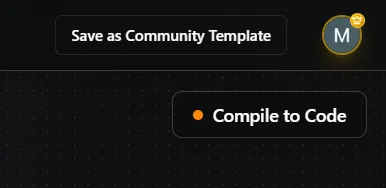
Once it’s done, you can configure the frontend part of the application. Vibe Agent already created a simple UI for you to configure the email settings. You just need to add the required fields.
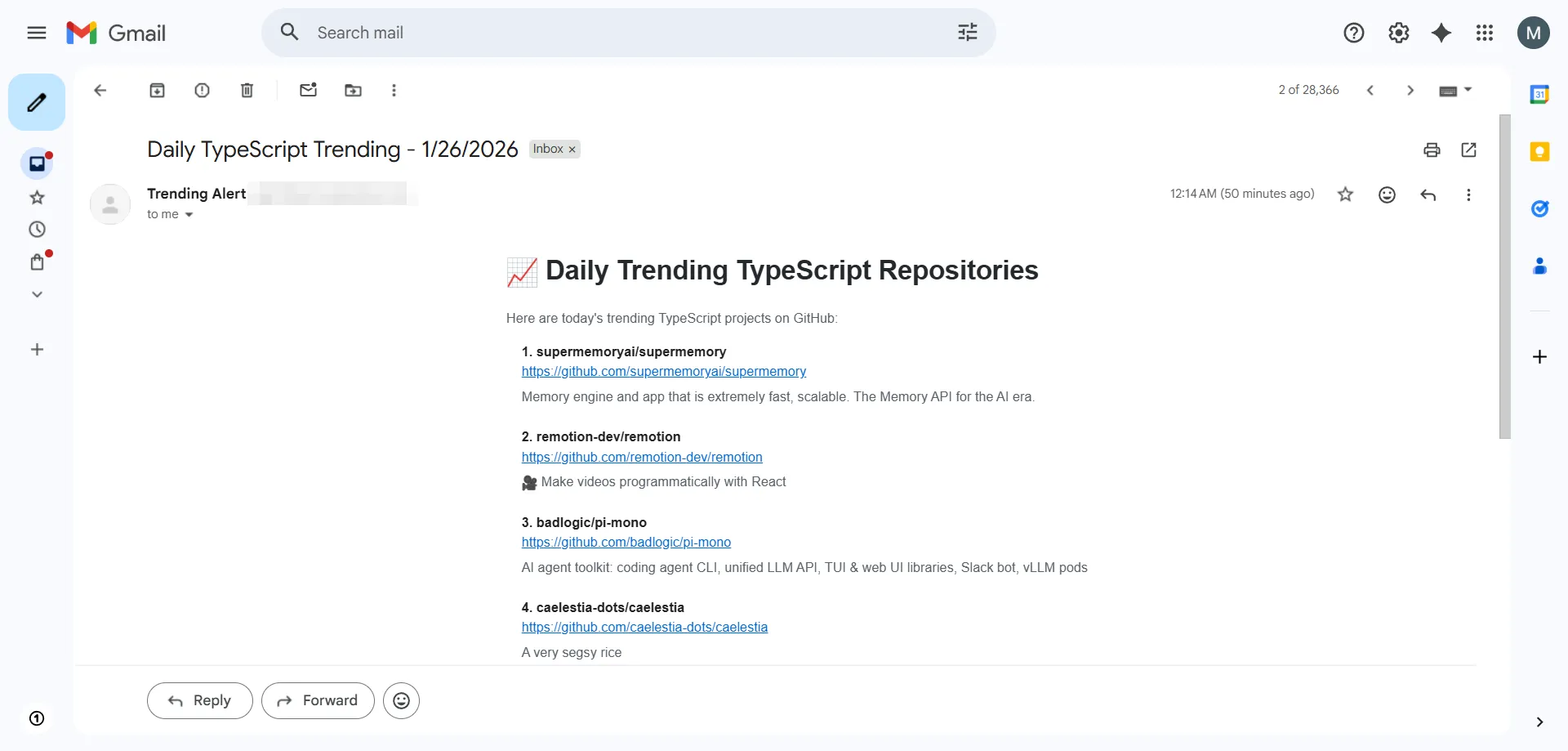
If everything is set up correctly, you will receive the following email every day at 9 AM UTC:
Conclusion
It’s easy to create automations with VibeFlow and Browser-Use. With just a few clicks, you can set up a daily email alert system that keeps you updated on the latest trending repositories on GitHub. No coding required!